
YooTheme's ZOO extension may require some additional configuration. This guide will help you do that.
You only need to follow this guide if TAGZ doesn't fetch the proper Description or Image for your items. Most likely this is due to the fact that your website is using a customized install of ZOO.
In the TAGZ CONFIG section you will find a screen like the one below:

This section contains the default Description/Image strings for ZOO Apps coming with the default installer of ZOO, which can be changed if needed. How to change them if handled below.
Changing the default Description and/or Image Strings may be needed when you have changed the default configuration of ZOO or have created custom instances of ZOO Apps. This section will describe what to do for custom Apps since the process of finding the Strings is similar for other App instances.
Follow the steps below to find the Description and Image Strings.

Our custom App is an instance of Blog so Blog is clicked. Select the particular App for your custom instance.

Copy the slug name and close the view:

Go to TAGZ CONFIG and scroll all the way down to Enable ZOO Custom Types:
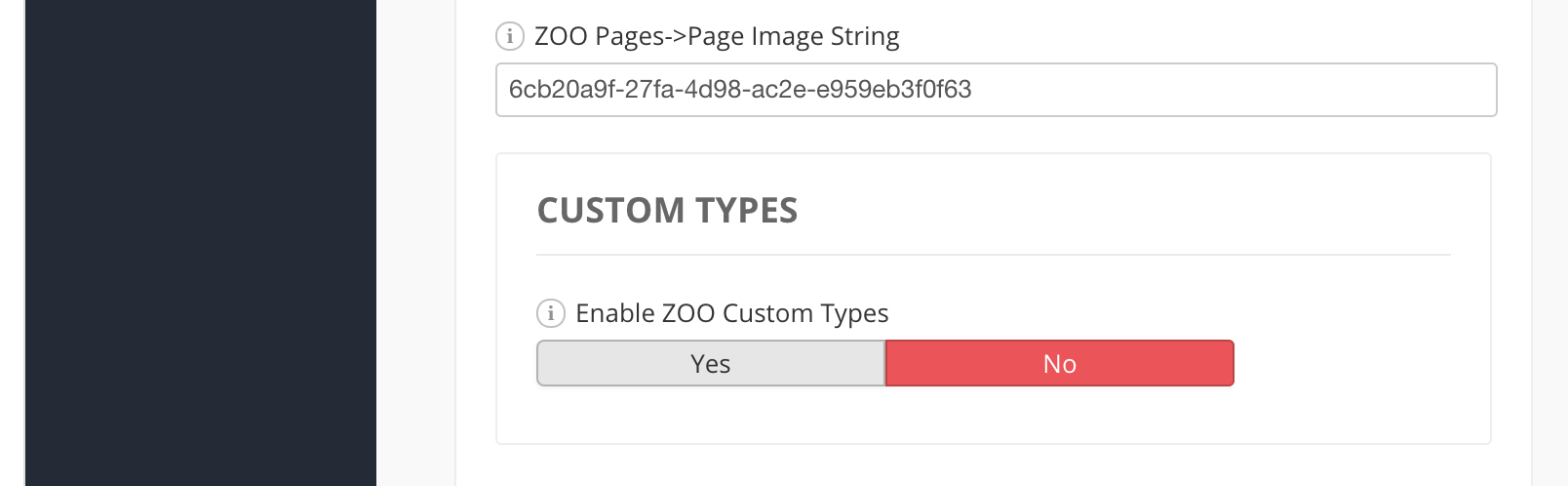 Click on Yes and fill the copied slug name of step 3 in ZOO Custom Type 1 (slug):

Now it is time to get the Description and Image Strings. This is similar for custom Apps and regular ZOO Apps.


 You need to find the part elements[xxx][0][value], specific the String between elements[] (in this case 9d2d2f91-8b99-44c2-a62b-e1e08965c66d). Copy that String and paste it temporary in a text editor.
 For finding the Image String a similar procedure like the one above needs to be followed:
1.First, find the field that contains the Image you want to use for the TAGs and Inspect that:
Now, both Strings are copied in a safe (temporary) place!

Now you can create the Open Graph and Twitter Cards :-). More about that in the section about Creating TAGS